
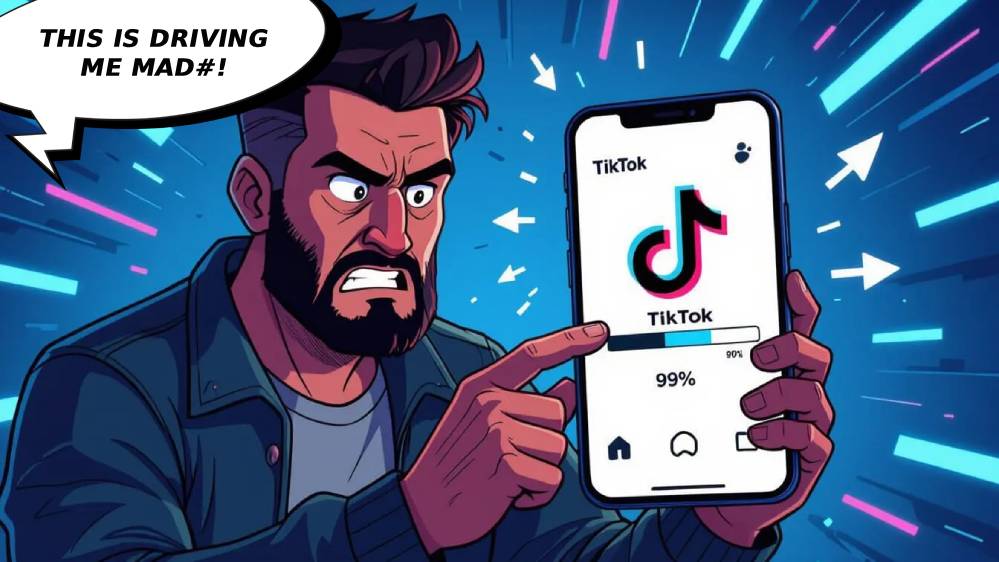

Your TikTok video upload is stuck at 0% and won’t even start?!
Or it gets to 99% and just sits there forever without finishing!!
Maybe the upload bar freezes halfway through, or it says “Processing” for hours with no progress. This is driving me insane honestly… You’ve got content ready to post and TikTok won’t upload it!! What the fuck is happening?!
Why TikTok Uploads Get Stuck
TikTok uploads fail for several annoying reasons – here’s what blocks your videos!!
Common upload blockers:
- Weak internet connection – WiFi or data too slow or unstable
- File too large – Video exceeds TikTok’s size limits
- Wrong video format – TikTok can’t process the codec
- App cache corrupted – Temporary data blocking uploads
- TikTok server issues – Platform experiencing outages
- Storage space full – Phone doesn’t have room to process video
- Background app restrictions – OS killing TikTok during upload
And let’s force this upload through, I’m not going to lie there’s specific tricks that work…
Check Your Internet Connection First
Weak or unstable internet is THE #1 reason uploads get stuck – fix this before anything else!!
Test your connection: Open browser and load a video on YouTube or Instagram. If that’s slow or buffering?? Your internet is the problem, not TikTok, for real.
Switch networks: On WiFi that’s slow?? Switch to mobile data instead. On mobile data?? Find WiFi with stronger signal. Move closer to WiFi router if signal is weak!!
TikTok needs consistent upload speed to finish videos. If connection keeps dropping even for 1 second, the upload fails and gets stuck.
Don’t lock your phone: Uploads stop when screen locks on some devices. Keep TikTok open and screen active until upload finishes. Disable auto-lock temporarily in phone settings 😉
Check TikTok’s official upload guide for requirements.
Force Close And Restart Upload
If upload is stuck, don’t wait – force close TikTok and start fresh!!
Force close on iPhone: Swipe up from bottom (or double-click home button). Find TikTok and swipe it UP to close. Wait 10 seconds. Reopen TikTok and try uploading again!!
Force close on Android: Settings > Apps > TikTok > Force Stop. Or swipe up and swipe TikTok away. Wait 10 seconds, reopen, retry upload.
This clears the stuck upload from memory and lets you start clean. Your video is still in drafts if you saved it there.
Check drafts first: Before reuploading, check if TikTok auto-saved to Drafts. Profile > three lines > Drafts. If it’s there, post from drafts instead, bet!!
Having other TikTok draft problems? That’s another common issue, lowkey…
Clear TikTok Cache
Corrupted cache files block uploads – clearing this fixes stuck uploads like 60% of the time!!
Clear cache on iPhone: TikTok doesn’t have built-in cache clear on iOS. You have to DELETE and REINSTALL the entire app. Uninstall TikTok > Restart phone > Reinstall from App Store > Log back in!!
Clear cache on Android: Settings > Apps > TikTok > Storage > Clear Cache (NOT Clear Data). This removes temporary files but keeps your login. Restart TikTok and try uploading again 😉
After clearing cache, uploads work way smoother because TikTok isn’t dealing with corrupted temporary data anymore.
Dealing with TikTok storage issues? Check our cache cleaning guide…
Delete And Reinstall TikTok
If clearing cache doesn’t work, nuclear option – delete app completely and reinstall fresh!!
This wipes ALL local data including corrupted files. Your drafts SHOULD sync back but save important ones first 🙁
Reduce Video File Size
TikTok has file size limits – videos too large will get stuck uploading!!
TikTok limits: Maximum 287.6 MB file size, maximum 10 minutes length. Videos recorded in-app usually fine. Imported videos often too big.
If your video is over 200MB?? That’s probably why it’s stuck. Compress it before uploading.
Compress video: Use Video Compress app (iPhone) or Video Compressor (Android). Import your video and choose “Medium” or “Low” quality. Upload compressed version instead!!
Compressed videos upload WAY faster and don’t get stuck at 99%, for real.

Check Video Format Compatibility
TikTok only accepts certain video formats – wrong format causes stuck uploads!!
Supported formats: MP4 (best compatibility). MOV (works on iPhone). WebM (sometimes works). Most other formats FAIL or get stuck.
Unsupported formats: AVI, MKV, WMV, FLV. These will upload to 0% or 50% and freeze forever.
If you’re uploading from camera roll and it’s not MP4 or MOV?? Convert it first using a video converter app. Or better yet, record directly in TikTok 😉
Free Up Phone Storage Space
If your phone storage is nearly full, TikTok can’t process and upload videos properly!!
Check storage: iPhone: Settings > General > iPhone Storage. Android: Settings > Storage.
TikTok needs at LEAST 2-3 GB free space to process uploads. If you have less than 1 GB free?? That’s why uploads are stuck, highkey common issue honestly.
Free up space: Delete unused apps. Clear photo/video backups to cloud. Delete old TikTok drafts you don’t need. Remove downloaded music or podcasts!!
After freeing space, restart phone completely. Then try uploading again – should work smoothly now 🙂
Check TikTok’s Own Storage
TikTok app itself might be using massive storage internally!!
Settings > Apps > TikTok > Storage. If TikTok is using 5+ GB?? Clear cache (Android) or reinstall app (iPhone) to reclaim that space.
Disable Battery Optimization
Your phone might be killing TikTok in background to save battery – this stops uploads mid-process!!
Android battery settings: Settings > Apps > TikTok > Battery > Unrestricted or Allow background activity. This lets TikTok keep uploading even when you switch apps or lock screen.
iPhone background refresh: Settings > General > Background App Refresh > find TikTok > turn it ON. This prevents iOS from suspending TikTok during uploads.
After changing these settings, uploads won’t get interrupted when you lock your phone, no cap.
Having TikTok camera crashing issues? That’s related to app performance…
Try Uploading During Off-Peak Hours
TikTok servers get overwhelmed during peak hours – uploads fail or get stuck more often!!
Peak hours (uploads slow): 6-10 PM local time, weekends especially Friday-Sunday.
Off-peak hours (uploads fast): Early morning 5-9 AM, late night after midnight, weekday afternoons.
If upload keeps failing during evening?? Try again in the morning instead, bet.
Having trouble with TikTok video editor glitching? That’s another upload-related issue…
Check TikTok Server Status
Sometimes TikTok itself is broken and uploads fail for EVERYONE!!
Check if TikTok is down: Go to downdetector.com/status/tiktok, check TikTok’s Twitter, ask friends if their uploads work.
If TikTok is having widespread issues?? Wait 30-60 minutes and try again. Server problems usually resolve quickly, lowkey just gotta be patient.
Wrapping This Up
First thing – check your internet connection, I’m not playing!! Weak WiFi or data is why 80% of uploads get stuck. Switch networks or move closer to router, deadass.
Force close TikTok completely and restart the upload fresh. Don’t wait for a stuck upload to finish – it won’t, deadass.
Clear TikTok’s cache to remove corrupted temporary files… this fixes most stuck uploads immediately, no cap. Android users clear cache in settings, iPhone users reinstall the app.
Make sure your video file isn’t too large. Compress videos over 200MB before uploading. TikTok’s servers struggle with huge files and uploads freeze at 99%.
And keep your screen on during uploads!! Battery saver and background restrictions kill uploads mid-process. Disable those for TikTok specifically, highkey essential honestly.
If this guide helped you finally upload that video after watching it stuck at 0% or 99% for hours, share it with other creators fighting with TikTok’s broken-ass upload system!!
